


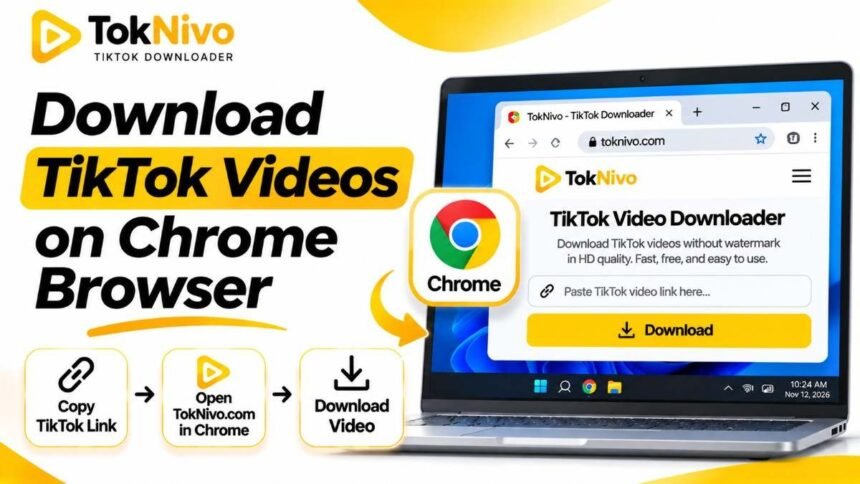
You find a TikTok you want to keep: perhaps it is your own clip, a recipe you plan to try, or a tutorial you would like to watch offline. If you already use Google Chrome, you do not need to install a browser extension just to save a video. You can copy the post’s link, open a browser-based downloader, and save the available file to your device.
This guide explains how to download TikTok videos on Chrome using TokNivo. It covers desktop computers, Chromebooks, and Android phones, shows where Chrome saves downloaded files, and helps you fix common problems. Download only content you own or have permission to save and reuse; a download does not transfer the creator’s rights to you.
Quick answer: How do I download a TikTok video in Chrome?
- Open the TikTok post and copy its link. On a computer, you can usually copy the URL from Chrome’s address bar. In the TikTok app, tap Share and then Copy link.
- Open TokNivo’s TikTok video downloader in Chrome.
- Select the Video tab and paste the post link into the input field.
- Select Download and choose a video option if the site shows multiple choices.
- Open Chrome’s downloads list to find the saved file.
TokNivo describes its tool as browser-based, with video, audio, and image tabs and no required account or extension. The exact formats and resolutions offered for a particular post depend on the source file and the options the tool can retrieve. Do not expect a 4K file if the original video was uploaded at a lower resolution.
What you need before you start
You need a working internet connection, Chrome, a link to the TikTok post, and enough free space on your device. A standard public video link is the easiest place to start. A private, deleted, restricted, or otherwise unavailable post might not be accessible to a browser-based downloader.
Check that you have copied the post link, not the creator’s profile URL or a link to a search results page. A video URL usually opens a particular post when pasted into a new tab. If you are unsure, test it in Chrome first. If the correct TikTok plays, use that address with TokNivo.
Also decide how you intend to use the saved video. Keeping your own content or saving a permitted reference for personal use is different from republishing another person’s work. Ask for permission before reposting or using someone else’s video in marketing, and preserve attribution where appropriate. A version without a visible watermark is still somebody’s creative work.
How to download TikTok videos on Chrome for Windows, Mac, or Chromebook
Step 1: Open the video and copy its link
Visit TikTok in Chrome and navigate to the specific video. Click Chrome’s address bar, select the full address, and copy it. On Windows and Chromebooks, Ctrl + L selects the address and Ctrl + C copies it. On Mac, use Command + L and Command + C.
If you found the video on your phone but want the file on your laptop, use TikTok’s Share → Copy link option and send the link to yourself through a method you already trust. Open that link on the computer and copy its address. Avoid sending the actual media file back and forth when all you need is the post URL.
Step 2: Open TokNivo in another Chrome tab
Go to toknivo.com and select Video. You should see the field labeled for a TikTok link, a Paste control, and a Download action. Make sure the address bar shows the correct domain before entering a link. There is no need to install an extension or give a third party access to your TikTok account for this workflow.
Step 3: Paste the video URL
Click the link field and paste your URL with Ctrl + V or Command + V. You can also try the site’s Paste button if Chrome has granted clipboard access. If the button does not paste anything, the keyboard shortcut is a simple alternative. Look for extra text, such as a message copied alongside the link, and remove it if the site cannot recognize the input.
Step 4: Choose an available video option
Click Download and wait for the available choices. If multiple video qualities appear, choose the one that fits your purpose. For a quick reference on a phone, a smaller file may be enough. For editing your own video or viewing it on a larger screen, choose the highest useful resolution available for that post.
TokNivo advertises several quality options and video downloads without a watermark. Availability varies by source. A quality label on a page should not be treated as proof that a particular TikTok was originally recorded or delivered in that resolution. Inspect the saved video’s actual dimensions if that matters to your project.
Step 5: Find the downloaded file
Chrome normally shows a download icon near the upper-right corner when a download starts. Select it to view the latest file. You can also open the Chrome menu → Downloads or enter chrome://downloads/ in the address bar. From the downloads list, use Show in folder to locate the video on your computer.
On a typical Windows setup, Chrome saves to your user Downloads folder; on macOS, it usually uses Downloads under your user folder. Chromebook users can check the Files app and its Downloads section. If you previously changed Chrome’s download destination, check Settings → Downloads for the configured location. You can also enable Ask where to save each file before downloading if you prefer choosing a folder each time.
How to download TikTok videos in Chrome on Android
The same link-based process works in Chrome on Android, but the controls are sized for a phone.
- Open the TikTok app or TikTok website and find the video.
- Tap Share → Copy link. If you are viewing the post in Chrome, you can also copy the post’s address from the browser.
- Open a Chrome tab and visit TokNivo.
- Choose Video, paste the link, and tap Download.
- Pick an available video file and wait for Chrome to finish saving it.
To find the result, open Chrome’s menu and select Downloads, or look in your phone’s Files or My Files app under Downloads. Depending on the phone and its software, the video may also appear in a gallery app after the media library scans the new file. If it does not appear there immediately, checking the file manager is more reliable than downloading it a second time.
If a link opens the TikTok app when you would rather copy it in Chrome, use the TikTok app’s own Share → Copy link command, then switch back to Chrome. The link is what the downloader needs; it does not matter which app you copied it from.
Do you need a TikTok downloader Chrome extension?
For the method in this guide, no. A website-based tool runs in a normal Chrome tab. This is convenient on a shared computer, Chromebook, or phone where you cannot or do not want to install an extension. It also lets you follow the same basic steps across devices.
Extensions can add controls directly to a webpage, but they may request browser permissions and require installation and maintenance. Before installing any extension, read its permissions, developer information, and current reviews. If your goal is simply to save an occasional video from a link, try the browser workflow first. Never provide a TikTok password to a download page or an extension claiming that a public post requires your login.
Choosing the right file and quality
Most people looking for a TikTok video downloader for Chrome want an MP4 they can play offline. Choose a video download when you want both picture and sound. If you only need the sound, TokNivo has a separate TikTok MP3 downloader; check the page’s current options before choosing a format. For a photo post or slideshow, its photo downloader is more relevant than a video download.
Quality is a tradeoff between clarity and file size. A higher-resolution video generally needs more storage and may take longer to download. The best selection is the highest quality actually available from that post that suits your intended screen or editing task. Downloading a low-resolution source under a higher-resolution label cannot restore detail that was never in the original.
If you plan to edit a video you created, keep your original camera or editing-project file whenever possible. A downloaded copy from a social platform can be compressed. It is useful for a backup or quick reference, but your source file usually gives you more flexibility for further edits.
Chrome download not working? Try these fixes
The link is rejected. Open it in a new Chrome tab to verify that it leads to a particular video. Copy the post URL again, remove any unrelated pasted text, and retry. If the post was removed or made private, a downloader may not be able to retrieve it.
The Paste button does nothing. Click inside the field and use your device’s standard paste command. Browser clipboard permissions can affect a site’s paste button, while manual paste may still work.
The page shows no video options. Refresh the page once and retry the correct post link. Check that you selected the Video tab. If the creator restricted access or the video is unavailable in your location, the link may open for some users but still fail for a downloader.
The file seems to have disappeared. Open Chrome’s Downloads page and select Show in folder. Review Settings → Downloads to see whether files are going to a custom location. On Android, check the Files app’s Downloads directory.
Chrome reports a download error. Check your internet connection, available device storage, and access to the destination folder. Chrome may display messages such as Disk full, Insufficient permissions, or Forbidden; each points to a different cause. If Chrome flags a download as unsafe, do not bypass the warning casually. Confirm the site address and file type and follow Chrome’s guidance.
The video opens in a tab instead of saving. Depending on how the file is served, Chrome may play a video in the browser. Use the site’s actual download choice where available. For a directly accessible file that you are permitted to save, Chrome’s Save as option may also help. Do not assume that saving the page itself will save the video; that can produce an HTML file instead.
The downloaded video will not play. Check whether the file finished downloading and has a plausible file size. If it is incomplete, remove the failed copy and try again. If the file is complete, try a player that supports the video’s format. Avoid repeatedly changing the filename extension; renaming a file does not convert its media format.
Can you download TikTok videos without a watermark in Chrome?
TokNivo offers a no-watermark video option on its site. Paste the post link into its Video tool and select the appropriate file if that option appears. The results can depend on whether the source is accessible and what the tool can retrieve at the time you try it. Check the downloaded file before assuming that it meets a particular quality or watermark requirement.
There is also an ethical difference between removing a visual overlay and gaining permission to reuse a clip. If a creator’s work is going into an ad, a public social post, or a client project, secure the relevant rights first. If you are downloading your own TikTok, consider keeping the original upload as your primary master file.
Frequently asked questions
Can I download a TikTok video in Chrome without installing software?
Yes. Copy the post link, open TokNivo in Chrome, paste the link into the Video tab, and select an available download. You do not need a Chrome extension for this browser-based method.
Does this work on Chromebook?
TokNivo lists ChromeOS among its supported desktop platforms. Use the desktop steps above and check the Chromebook Files app’s Downloads folder after saving the file. The precise choices offered still depend on the post.
Where does Chrome save TikTok videos on my computer?
Chrome saves downloads to the location set in Settings → Downloads. If you have not changed that setting, it is usually your Downloads folder. Open chrome://downloads/ to find a completed item and show it in its folder.
Can I use this method for private TikTok videos?
Do not count on a link-based tool to retrieve a private post. Access controls and creator choices can prevent downloads. Ask the creator for the file or permission if you need a copy.
Why is there no 4K or 8K option for my video?
High-resolution output depends on the underlying source and what a tool can access. A video recorded or delivered at a lower resolution cannot gain genuine 4K detail just because a downloader advertises 4K support. Choose from the real options offered for your post.
Can I save just the music or audio?
TokNivo has a separate audio option for TikTok links. Use the Audio tab or its MP3 page if the sound is what you need. Check usage rights before incorporating another person’s audio into your own work.
Final thoughts
To download TikTok videos on Chrome, start with the correct post link. Open TokNivo, use the Video tab, choose an available file, and locate it through Chrome’s downloads list. The workflow is similar on Windows, Mac, Chromebook, and Android, so you can use the browser you already have. Keep an eye on the original video’s availability and quality, and respect the creator’s rights when saving or sharing their work.
Ready to try it? Open TokNivo’s TikTok video downloader, paste a public video link, and review the download options for that post.