


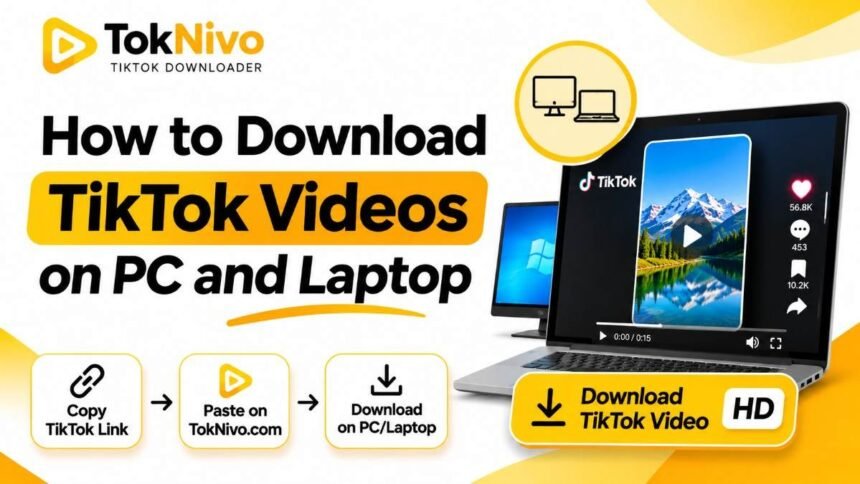
You find a TikTok tutorial or clip you want to keep on your computer, but the desktop page does not make it obvious how to save the video. You do not need to install an unfamiliar program or extension. For an accessible public post, the basic workflow is to copy its link, open a browser-based downloader, select an available MP4, and check your computer’s Downloads folder.
This guide covers Windows PCs, MacBooks, Chromebooks, and other laptops. It explains how to use TokNivo in a desktop browser, how to check video quality, and what to do if a download opens in a tab or appears to disappear. It also explains when TikTok’s own save option is available and why a video link is not the same as a downloaded file.
Before you start: check the post and your browser
Open the video on TikTok or use a link someone shared with you. Confirm that the post plays and that its URL points to the specific video rather than a profile or search page. Public, accessible posts are the best candidates for browser-based downloads. A private, removed, or restricted video does not become available just because you paste its URL elsewhere.
Method 1: Use TikTok’s save option when available
TikTok says a post can be saved when its creator allows downloads. In the TikTok app, the usual path is Share → Save video. On a computer, the controls available on TikTok’s website can differ from the mobile app, so check the post’s share or menu options rather than assuming that the same button appears on every desktop page.
Method 2: Download a TikTok video on PC with TokNivo
TokNivo’s video downloader works in a browser, so the same general process applies on Windows, macOS, ChromeOS, and Linux. Its page offers a Video tab and, when a post can be processed, available download options. What you can download and at which quality depends on the source post and the files available for it.
Step 1: Copy the exact TikTok video URL
Open the video on TikTok’s website. Use its Share control and Copy link option if shown, or copy the video URL from the browser address bar. A typical post URL identifies a particular video; a creator profile URL does not. If you copied the link from a message, open it first to verify it leads to the intended post.
Do not paste your TikTok password into a downloader. A public video URL is the input for this browser workflow. If a page unexpectedly asks you to sign in to TikTok or install a codec, close the prompt and check the website address.
Step 2: Paste the link into TokNivo
In another browser tab, visit toknivo.com. Keep the Video tab selected, paste the copied URL into the link field, and click Download. Wait for the page to process the link. Do not repeatedly click while it is still loading; you could start more than one request or file transfer.
Step 3: Choose an available MP4
Select a video quality that is actually offered. An MP4 is the practical choice for watching the clip offline or importing it into common editing software. A higher resolution can be useful on a laptop screen, but it may take more storage and time to download. If your only goal is to hear the sound, TokNivo also has audio options; an MP3 is a separate audio file, not a video.
TokNivo describes no-watermark downloads for supported posts. A clean file does not remove the creator’s rights or give you permission to repost the clip. Keep its source link and credit information with any personal archive.
Step 4: Save and find the file
Click the desired download control and let the transfer complete. Your browser may show a download indicator near its toolbar. Click that indicator to open the finished file or reveal it in its folder. If your browser asks where to save each file, choose a folder you can find again.
On Windows, open File Explorer and choose Downloads from the sidebar. On a Mac, open Finder and choose Downloads, or use the Downloads stack in the Dock if you have it enabled. On a Chromebook, open the Files app and check Downloads. Browser download history is often the quickest route when you do not remember the destination folder.
Step 5: Verify the result
Open the MP4 and play the beginning and end. Check that it is the right video, that the audio works, and that the image looks as sharp as you expected. A filename ending in .mp4 does not by itself prove that the transfer completed or that the source was high quality. If you downloaded several versions, compare them at the same playback size before keeping the larger one.
How to get the best available quality
The quality of a downloaded TikTok depends on the original upload and the accessible video streams. Choose a higher resolution if the result page offers one, but do not assume that a label such as “4K” or “8K” means the original post contains that much real detail. A small source video cannot be made crisp by increasing its pixel dimensions.
Check the file properties or your video player’s information panel for its frame size. Then watch a section with text, movement, or fine details at full screen. If two options look almost identical, the smaller file may be sufficient for offline viewing. For editing your own work, use the original recording or export whenever possible.
Troubleshooting PC and laptop downloads
The Download button opens a new tab
A browser may preview an MP4 instead of immediately saving it. Look for the video’s download control in the new tab. You can also try the browser’s Save as action on the media when available. Then check the browser’s download history before clicking the original button again.
The file is not in Downloads
Open the browser’s downloads list and choose Show in folder or the equivalent command. Your browser may be set to ask for a location each time, or a previous save may have gone to a different folder. Search your computer for recently modified .mp4 files if the download history no longer shows it.
TokNivo says the link cannot be processed
Copy the URL again from the specific TikTok post. Test whether it still opens publicly in your browser. Private, deleted, age-restricted, or region-limited posts can fail, as can a temporary network problem. If the post is your own, try your original file rather than depending on a public link.
The downloaded file does not play
Check whether the transfer finished and whether the file has a reasonable size. Try opening it in another standard video player. If the file is incomplete, download it once more. Do not install a random “required codec” from a pop-up; a normal MP4 should not require software from an unfamiliar download page.
The video looks blurry or has no sound
Compare the available quality options and check the original post. Some sources are already compressed. If you accidentally chose an audio-only option, download an MP4 instead. If the original clip has no sound, a downloader cannot invent an audio track.
Organize videos you want to keep
If you save several TikToks for research or inspiration, give each file a useful name such as creator-topic-date.mp4 and keep the post URL in a note. This makes it easier to find the creator later and distinguish similar clips. Put personal reference videos and files you have permission to publish in separate folders so their permitted uses are clear.
FAQs
Can I download TikTok videos on a laptop without software?
Yes. For an accessible public post, copy its link and use TokNivo in a browser. The saved MP4 normally appears in your browser’s configured download location. You do not need a separate desktop downloader application for this workflow.
Can I download any private TikTok video if I have its link?
No. Knowing a URL does not grant access to a private or unavailable post. Ask the creator to provide a copy if you have a legitimate reason to keep it.
Is downloading the same as getting permission to repost?
No. Save a file only for a permitted purpose. Ask the creator before republishing or using the video in commercial content, and consider rights in music and other material included in the clip.
Save the right file, then check it
To download a TikTok video on a PC or laptop, copy the link to an accessible post, paste it into TokNivo, choose an available MP4, and open the completed file from your browser’s downloads list. Check playback and quality before you archive or edit it. The steps are simple; finding the right source, format, and folder makes the result useful.
