


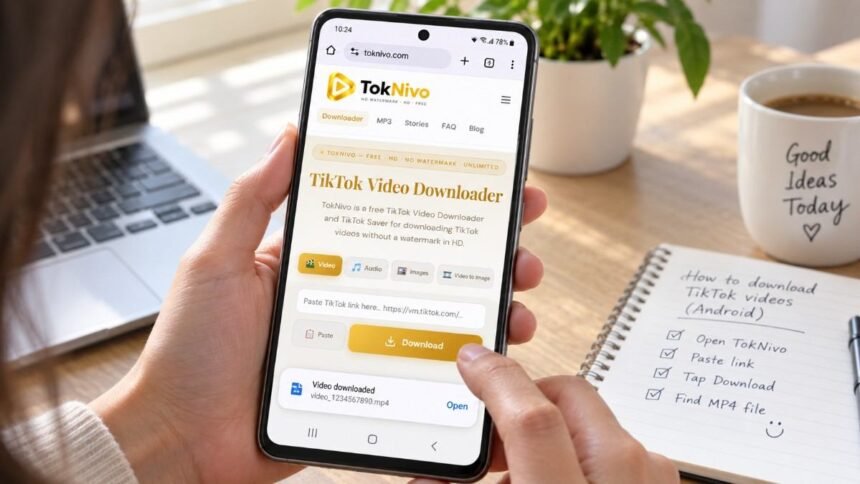
TikTok is home to quick recipes, travel ideas, tutorials, product demonstrations, comedy clips, and countless other short videos. Watching them in the app is easy, but you may sometimes want to save an eligible video for offline viewing, keep a backup of your own post, or retain a clip that a creator has given you permission to download.
Android users have two practical options. TikTok’s built-in Save video command is the official method, but it appears only when the creator permits downloads and the saved copy normally contains TikTok attribution. If you need an available watermark-free copy of your own content or another public video you are authorized to save you can use a browser-based tool such as TokNivo.
This guide explains how to download TikTok videos on Android step by step, where to find the completed file, and how to solve the most common download problems. You do not need to install an unknown APK or give a third-party website your TikTok password.
Quick Answer: Download a TikTok Video on Android
- Open the public video in the TikTok app.
- Tap Share, then choose Copy link.
- Open Chrome and visit TokNivo.com.
- Paste the copied link into the downloader field.
- Tap Download and wait while the public link is processed.
- Choose an available MP4 option.
- Open Chrome’s Downloads page or the Downloads folder in your Files app.
The exact buttons and quality options can vary by post, browser, Android version, and the media available from the source.
Method 1: Use TikTok’s Built-in Save Video Option
TikTok’s native download feature is the simplest choice when you do not mind the platform watermark.
- Open TikTok and go to the video.
- Tap the Share arrow.
- Tap Save video.
- Wait for the download to complete, then check your Gallery or Photos app.
If Save video is missing, the creator may have turned off downloads for that post. TikTok gives creators control over this setting. Do not try to bypass private accounts, restricted posts, or other access controls. You can still share the original link or ask the creator for permission and a copy.
Method 2: Download a TikTok Video on Android With TokNivo
TokNivo works in a mobile browser, making it useful when you prefer not to install another app. The basic process is copy, paste, process, and save.
Step 1: Open the Public TikTok Video
Launch TikTok on your Android phone and find the video you want to save. Confirm that the post is public and that you own the content or have the creator’s permission to download it.
Avoid downloading private videos, paid content, or material shared only with a limited audience. A visible post is not automatically free to reuse.
Step 2: Copy the TikTok Video Link
Tap the Share arrow on the right side of the video. In the sharing panel, select Copy link. TikTok copies the post URL to your Android clipboard.
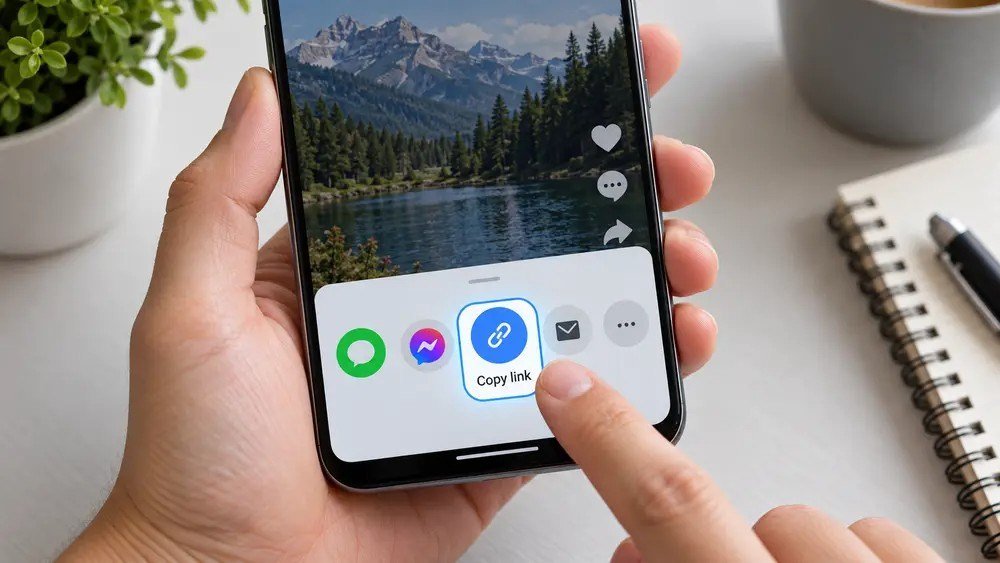
If the option is not immediately visible, swipe through the available sharing actions. Make sure you copy the link from the individual video rather than a creator’s profile page.
Step 3: Open TokNivo in Chrome
Open Chrome, Samsung Internet, Firefox, Edge, or another current Android browser. Go to https://toknivo.com/.
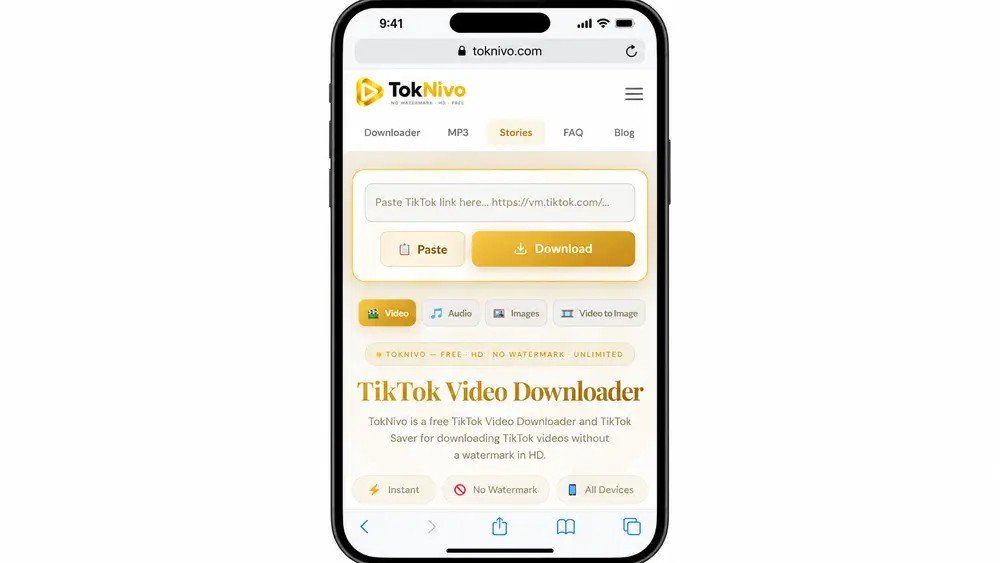
You should not need to sign in to TikTok or enter a social-media password to process a supported public link. Leave any page that asks for your TikTok credentials, an unfamiliar APK, or unnecessary device permissions.
Step 4: Paste the Copied Link
Press and hold inside TokNivo’s URL box, then tap Paste. Check that the full address appears in the field. Tap Download to process the link.

If TokNivo reports an invalid link, return to TikTok and copy it again. Remove any surrounding message text that may have been pasted with the URL.
Step 5: Choose an Available Download Option
After processing, TokNivo will show the media choices available for that post. Select an MP4 video option and choose the highest genuine resolution available if you want the best picture quality.
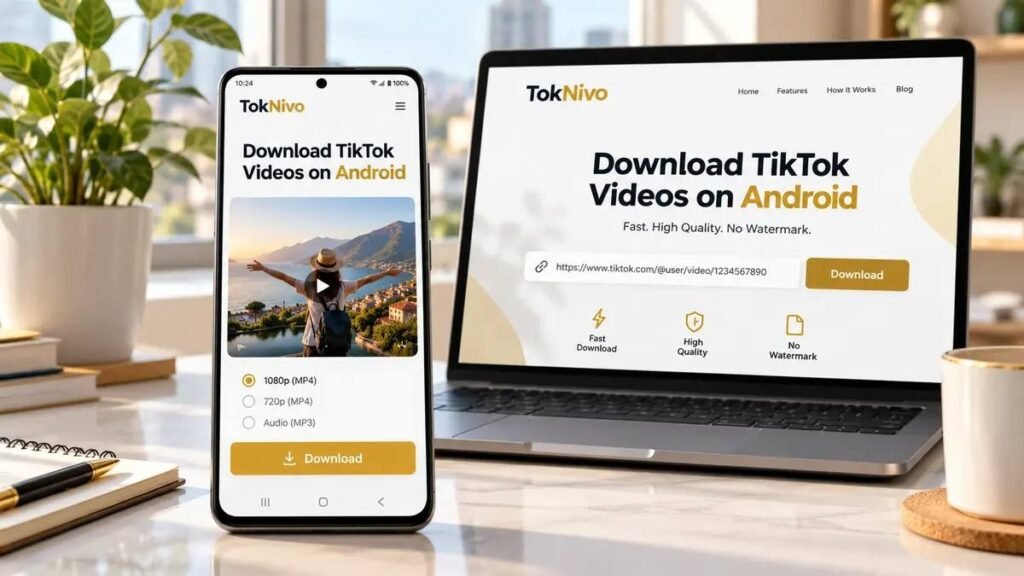
A downloader can preserve the available source quality, but it cannot create real 1080p, 4K, or 8K detail when the original file is lower resolution. Larger files also use more mobile data and storage.
Step 6: Save and Find the Video
Tap the required download button. Chrome may start the download immediately or open the video in a preview. If a preview appears, use the browser’s download control or menu to save the file.
To view downloads in Chrome, tap the three-dot menu and select Downloads. You can also open your Android Files app and browse to Downloads. Tap the MP4 file to play it or move it into another folder.
Where Are TikTok Videos Saved on Android?
Most browser downloads are stored in the Downloads folder. Depending on your phone, you may find it through:
- Chrome: Menu > Downloads
- Files by Google: Browse > Downloads
- Samsung My Files: Internal storage > Download
- Your Gallery app, if it automatically indexes the MP4
If the video does not appear in Gallery, that does not necessarily mean the download failed. Open the file directly from Downloads. You can then move or copy it to a Movies or DCIM folder if you want it to appear with your other videos.
How to Download Better-Quality TikTok Videos on Android
For the best available result, start with a stable Wi-Fi connection and choose the highest legitimate MP4 resolution shown. Keep enough free storage on the phone and allow the first download to finish before tapping the button again.

Do not trust labels that promise an 8K file from an ordinary mobile upload. Upscaling can increase the file size without restoring detail that was absent from the original. A clean 720p or 1080p file is usually suitable for an Android screen when that resolution exists at the source.
Creators should keep the original recording or final export before uploading it to TikTok. That master file normally provides better quality than any copy downloaded after publication.
Common Android Download Problems and Fixes
The TikTok Link Does Not Work
Copy the URL again from the post’s Share menu. Check that you pasted only the link and that the post still exists. A deleted, private, age-restricted, or region-restricted post may not be available.
The Download Button Does Nothing
Refresh the page and try once more. Confirm that JavaScript and downloads are allowed in the browser, close strict ad or script blockers for the page, or test another updated browser. Avoid repeatedly tapping the button, because that can create duplicate files.
The Video Opens Instead of Downloading
This is normal with some Android browsers. Look for a download icon in the video player or open the browser menu and choose the available download or save command.
The File Is Missing
Open Chrome, tap the three-dot menu, and select Downloads. If the item is listed, tap its folder icon or open it from there. Also check your Files app, available storage, and the browser’s download permissions.
The Downloaded Video Is Low Quality
The source post may only be available at a lower resolution. Try the highest option shown, use a reliable connection, and avoid repeatedly converting the file between formats.
Is TokNivo Safe to Use on Android?
A browser-based downloader avoids the need to install an extra Android app, but you should still use normal security precautions. Visit the correct HTTPS address, keep Chrome and Android updated, and never provide your TikTok password to a downloader.
An ordinary video download should arrive as a media file such as MP4—not an APK or executable installer. Review TokNivo’s current privacy policy and terms before using the service, and scan any unexpected file before opening it.
Is Downloading TikTok Videos Legal?
Downloading a video does not transfer copyright or ownership. Save your own content, public-domain or appropriately licensed material, or videos you have permission to download. Do not remove attribution to mislead viewers, sell unauthorized copies, or repost another creator’s work as your own.
Music, performances, artwork, trademarks, and people appearing in a video may involve separate rights. Laws and exceptions differ by country, so request permission or seek qualified legal advice when the intended use is unclear.
Frequently Asked Questions
Can I download TikTok videos on Android without an app?
Yes. You can copy an eligible public post link and paste it into TokNivo using Chrome or another modern Android browser.
Can I download a TikTok video without a watermark on Android?
TokNivo is designed to show available media options for supported public links, which may include a watermark-free video. Use that option only for your own content or material you are authorized to save.
Do I need to log in to TikTok?
You should not need to provide your TikTok credentials to process a supported public URL. Never enter your TikTok password on an unrelated downloader page.
Why is there no Save video button in TikTok?
The creator may have disabled video downloads, or the post may have privacy or availability restrictions. Respect those controls and share the original link instead.
Where can I find the MP4 after downloading it?
Check Chrome > Menu > Downloads or open your Android Files app and browse to the Downloads folder.
Can I download private TikTok videos?
No. Do not use downloading tools to bypass privacy settings or access restrictions.
Final Thoughts
Learning how to download TikTok videos on Android is straightforward: open an eligible public post, copy its link, paste it into TokNivo, choose an available MP4 option, and find the completed file in Downloads. The workflow takes place in your browser, so there is no need to install an unfamiliar APK.
For the best experience, use a stable connection, choose a genuine source-quality option, and keep your original creator files whenever possible. Most importantly, save videos responsibly and respect the rights, privacy, and download preferences of the people who made them.