


You find a TikTok video you want to keep: perhaps your own finished edit, a recipe you plan to try, or a tutorial you need when you have no internet connection. You tap around on your iPhone, save something, and then wonder where it went. Did it land in Photos? In Files? Did Safari only open a preview?
That confusion is the real challenge with downloading TikTok videos on iPhone. A useful downloader needs to do more than produce a link. It should work comfortably in a mobile browser, make the available video options clear, and leave you with a file you can actually find.
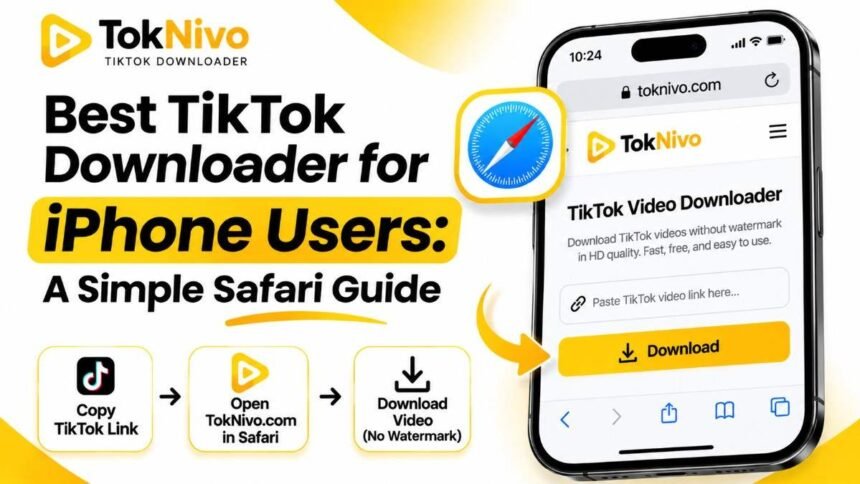
TokNivo is a browser-based option for public TikTok posts. You copy a post link, open TokNivo in Safari, paste the link, and choose an available download option. There is no separate iPhone app to install or TokNivo account to create. Below, we walk through the complete process, including the easily missed final step: finding the downloaded video and, if you want, adding it to your Photos library.
Quick answer: How do you download a TikTok video on iPhone?
- Open the TikTok post and tap Share → Copy link.
- Open TokNivo in Safari, select the video option, and paste the link.
- Tap Download and choose an available video file or quality.
- If Safari asks whether to download the file, confirm.
- Look in Files → Browse → Downloads. To place a downloaded video in Photos, open it in Files, tap Share, and choose Save Video if that option appears.
The last step depends on how Safari handles the file on your iPhone. A video that downloads successfully may be in Files even when it does not appear in Photos.
What makes a TikTok downloader good for iPhone?
On a laptop, a file usually goes straight into a familiar downloads folder. On an iPhone, browser downloads and the Photos library are separate. That makes the best TikTok downloader for iPhone the one that fits the way you actually use iOS.
First, it should work in Safari without requiring a questionable configuration profile or an unfamiliar app. Next, it should accept an ordinary TikTok post URL, show what is available for that post, and provide a downloadable file rather than a complicated chain of pages. It also helps if you can choose a video format suitable for your needs, whether you simply want to watch offline or use your own footage in an editing project.
TokNivo’s website describes a link-based workflow for video downloads and also offers separate tools for TikTok photos and audio. Its listed quality options depend on what the source post makes available; a higher number on a download page cannot create detail that was absent from the original video. For iPhone users, the practical advantage is that the main workflow runs in the browser you already have. You should still inspect the resulting file, especially if resolution matters for a project.
How to use TokNivo on an iPhone, step by step
1. Copy the correct TikTok post link
Open TikTok and navigate to the individual video you want to save. Tap the Share arrow and choose Copy link. If you are viewing TikTok in a browser, use the post’s Share control or copy the URL for that specific post. A creator’s profile address is different from a video address, so make sure you copied the post itself.
You do not need to type the URL manually. Copying it avoids missing characters and makes the process quicker. If you later receive an error, return to the post and copy a fresh link: a partial URL pasted from a message or a link to the wrong page can prevent the downloader from finding the media.
2. Open TokNivo in Safari
Launch Safari and visit toknivo.com. Use the video downloader on the homepage for a regular video post. Tap the input box, paste your link, and tap Download. Give the page a moment to retrieve the available results; larger videos and slower connections may take longer.
You can use the same browser approach without installing a separate downloader app. If you are saving a photo carousel instead of a video, use TokNivo’s TikTok photo downloader so that you get image files rather than expecting a single MP4 video.
3. Pick an appropriate video option
When results appear, choose a video download option that suits your use. An MP4 file is the straightforward choice for watching a video on an iPhone and for many common editing workflows. If several quality options appear, select the highest useful resolution that the source genuinely provides. A larger file may use more mobile data and storage; a smaller one can be more convenient if you only need a quick offline reference.
TokNivo describes options for videos without a TikTok watermark. If a clean copy is offered for that post, it may suit a personal archive of your own work. Removing an on-screen watermark does not transfer ownership of somebody else’s video or remove the need to ask before republishing it.
4. Let Safari finish the download
Depending on the link and your iPhone’s settings, Safari may ask you to confirm the download, display a video preview, or show its Downloads control. Follow the option shown on your screen. If the video opens as a preview, try the Share menu and look for Save to Files, or return to the download result and try its file option. Avoid assuming that seeing a video play means a permanent copy has been saved.
Check Safari’s download indicator if you are unsure whether the transfer has finished. Do not close the tab immediately if your connection is slow. Once the file is complete, move to the Files app and verify that the video opens before deleting the original link.
5. Find the video in Files or move it to Photos
Open the Files app, tap Browse, and look inside Downloads. Depending on your Safari settings, this may be under iCloud Drive or On My iPhone. Apple’s iPhone guide also suggests checking Safari’s Downloads control when a file is missing from Files. If you cannot remember which item you saved, sort the Downloads folder by date and open the newest video. Apple’s guide to finding downloads explains the folder and Safari indicator in more detail.
Want the file in the Photos app for easy viewing or editing? Open the video in Files, tap Share, and look for Save Video. The exact choices can vary with the file and iOS version. If Save Video is missing, confirm that the download is a playable video file, allow it to finish downloading from iCloud if needed, and try the Share menu again. Saving to Photos creates a copy in your photo library; the original file may still remain in Downloads and use storage.
TokNivo versus TikTok’s built-in Save video option
Before using another tool, check whether TikTok already offers what you need. In the TikTok app, open the video, tap Share, and select Save video when that choice is available. TikTok says creators can control whether others may download their posts, so the option may not appear for every video. TikTok’s download instructions are the best starting point for the native feature.
The built-in route is handy when you want a quick save from within TikTok. TokNivo is useful when you prefer a browser-based workflow or want to check the available video options for a public link. Neither method should be presented as a way to access private posts or override a creator’s choice. If you cannot view a post legitimately, ask its creator for a copy instead.
Can you download TikTok videos without a watermark on iPhone?
TokNivo offers a no-watermark video option for supported posts. Open the public post, copy its link, paste it into TokNivo, and select the appropriate result if one is available. Check the downloaded video itself: the result depends on what media can be retrieved for that particular post. A no-watermark file is a different output choice, not permission to remove a creator’s credit or publish their work as your own.
For your own videos, saving the original export from your editing app is often the cleanest way to preserve maximum quality and keep project files together. A downloaded copy of a published post is a convenient backup, but its resolution or compression may differ from the original export. If you are working for a client, keep the approved source file and license details alongside any reference downloads.
What if you want photos, slideshows, or audio?
Not every TikTok post is a standard video. Photo carousels have several separate images, and saving a single preview will not necessarily preserve the whole sequence. On iPhone, open the post, copy its link, and use TokNivo’s photo downloader to see the available images. Save the pictures you need, then check Files or Photos to see where your browser placed them. If you download a ZIP of multiple images, look in Files and extract it before expecting the images to appear separately in Photos.
If you only want an audio file from a video you own or are allowed to use, TokNivo also lists audio download options. An MP3 belongs in Files or a compatible audio app; it will not behave like a normal video in the Photos library. Music, voiceovers, and other sounds can carry their own rights even when they appear in a public TikTok post. Permission to save a video for personal reference does not automatically give you permission to reuse its audio commercially.
Fix common iPhone download problems
The download finished, but the video is not in Photos. Check Files → Browse → Downloads first. Files and Photos are different locations. Open the downloaded video and use the Share menu’s Save Video option if you need a Photos copy.
Tapping Download opens a player instead of saving a file. Look for Safari’s Share control and a Save to Files option. You can also return to TokNivo’s results and use another available video file link. A preview alone is not proof that the video has been downloaded.
The link gives an error. Copy the address again from the individual TikTok post. Confirm that you can still open it and that the post is public. A removed post, a private video, or an incomplete URL may be unavailable to a browser-based downloader.
The video looks blurry. Play the source in TikTok and check whether a better version actually exists. Select a higher available download option if offered, but do not assume a 4K label can turn a low-resolution original into genuine 4K detail. Make sure the transfer finished before judging playback quality.
The file will not open in Photos. Check its filename and format in Files, then try opening it there. If it is an audio file, ZIP archive, or incomplete transfer, Photos may not accept it as a video. Download the video result again as a common video format such as MP4 when available.
Your iPhone is running low on space. Remove unwanted duplicate copies after checking which one you need. If you saved a file in both Files and Photos, each location may consume space. For a collection of reference clips, clear filenames and a dedicated folder in Files can make them easier to find later.
Save responsibly: a short checklist
Downloading a public post for offline viewing, research, or your own archive is different from reposting it elsewhere. Before sharing somebody else’s work, ask the creator or check that you have the necessary permission. Keep their name and the original link with your notes. If a post includes licensed music, permission for the visuals alone may be insufficient for a new publication or commercial ad.
Be careful with login prompts as well. TokNivo’s basic link workflow does not require your TikTok password. If an unrelated page asks you to sign in or install a profile to get a video, pause and verify where you are. Stay with the official site address, toknivo.com, and treat links in pop-ups or unsolicited messages cautiously.
Frequently asked questions
Is TokNivo an iPhone app?
TokNivo is a website that you can open in Safari on an iPhone. Its core copy-link-and-paste workflow does not require a separate iOS app or TokNivo account.
Where are TikTok videos downloaded through Safari saved?
Usually, you should first check the Files app’s Downloads folder. The location may be in iCloud Drive or On My iPhone, depending on your settings. You can also check Safari’s Downloads indicator. A file in Downloads does not automatically have to appear in Photos.
Can I save a downloaded TikTok video to my iPhone camera roll?
Often, yes. Open the downloaded video in Files, tap Share, and choose Save Video when that option is available. Then check Photos. If the option is missing, verify that you saved a completed video file rather than a preview, audio track, or ZIP.
Can I download any TikTok video?
No. Availability depends on whether the post is accessible and what download options exist. TikTok’s built-in Save video option also depends on the creator’s download setting. Respect private content and ask for permission before republishing someone else’s media.
Does a higher resolution choice improve a low-quality source?
No. Choose the best available version for your purpose, but a download cannot restore detail that the uploaded source never contained. For your own content, retain the original export when image quality is important.
Final thoughts
For iPhone users, the easiest TikTok download workflow is the one that ends with a file you can locate. TokNivo keeps the first part simple: copy a public post link, paste it into Safari, and choose an available download. Then take a few seconds to check Files → Downloads and move the video into Photos if that is where you want it. That small habit prevents the most common iPhone frustration: thinking a video vanished when it was saved in a different place.
Ready to try it? Open TokNivo’s TikTok video downloader, paste a public video link, and follow the iPhone steps above.
