



You find a TikTok you want to watch offline, send to a friend, or keep for reference. Then you tap Share and wonder where the video went or why there is no Save button. The good news: you do not need to install a separate downloader app to save an eligible TikTok video on your iPhone.
There are two practical routes. If the creator permits downloads, TikTok’s built-in Save video option is the simplest. If you want to use a browser, you can copy a public TikTok link and open TokNivo in Safari. A browser download may first appear in the Files app; you can then add it to Photos. This guide walks through both routes and explains what to do when a step does not appear as expected.
Quick answer: the two ways to save a TikTok on iPhone
| Method | What you need | Where to look for the video |
|---|---|---|
| TikTok’s Save video button | TikTok access and a post whose creator allows downloads | Usually Photos |
| TokNivo in Safari | A link to an accessible public TikTok post; no separate downloader app | Safari Downloads or Files, then optionally Photos |
If you mean no TikTok app at all, open a public TikTok link in Safari, copy its URL from the address bar, and use the browser method below. TikTok’s mobile website may sometimes prompt you to open its app, and some posts may not be accessible in a browser.
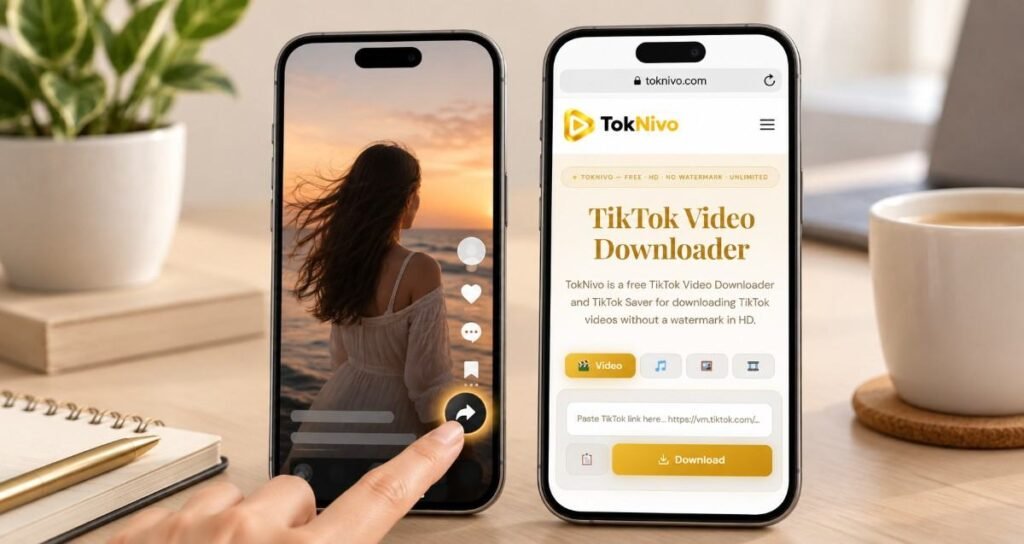
Method 1: Use TikTok’s built-in Save video button
Start here if you already use TikTok on your iPhone. Open the video, tap the Share arrow, and look for Save video in the available actions. Tap it and allow the save to finish. Check your Photos library, including Recents, for the result.
TikTok says the Save video option appears when the post’s creator allows downloads. If you cannot see it, that may be the creator’s choice; repeatedly tapping Share will not reveal a hidden setting on your phone. The app’s saved copy may also display TikTok branding. For a quick personal copy of an eligible post, though, this route takes only a few taps.
Method 2: Save a TikTok video on iPhone with Safari and TokNivo
You can use TokNivo’s TikTok video downloader from Safari without installing a separate app or browser extension. The basic process is to copy a link, paste it into TokNivo, choose an available download, and locate the file on your iPhone.
Step 1: Copy the TikTok video link
In TikTok, open the post and tap Share, then Copy link. If you received the post in a message or are viewing it in Safari, copy its URL instead. Make sure you are copying a link to the actual post, rather than a creator’s profile or a search-results page.
Step 2: Open TokNivo in Safari
Open Safari and visit toknivo.com. Paste the copied TikTok URL into the field on the page, then tap the button to process the link. Wait for the available video options to appear. If the site offers more than one resolution, select a suitable MP4 option; the quality you can actually get depends on the source video and the available file.
Step 3: Download the video
Tap the video download option you want. Safari may ask you to confirm the download. On some iPhones, the video opens in a preview first; in that case, look for a download control or use the Share menu to save the video, depending on what Safari displays. Let the transfer finish before switching apps.

Step 4: Find the MP4 in Files
Open the Files app, tap Browse, and open Downloads. Depending on your Safari settings, that folder may be under iCloud Drive or On My iPhone. You can also tap Safari’s downloads indicator to inspect recent downloads. Open the file to confirm that it plays and is the correct video.
Apple lets you choose where Safari saves files under Settings → Apps → Safari → Downloads on current iOS versions. If you have changed this location, look in the folder you selected. Menu names can vary slightly by iOS version.

Step 5: Move it to Photos if you want it in your camera roll
From Files, open the downloaded video and tap Share. Choose Save Video when that action is available. Now open Photos and look in Recents or your video collection. You can keep the copy in Files, delete one of the duplicates if you no longer need it, or organize it into an album.
If Save Video is missing, first check that the download completed and that the file is a playable format supported by Photos. Try opening the MP4 in Files and using its Share button again. An audio-only download will stay as an audio file and will not appear as a video in Photos.

Can yoWhere did my downloaded TikTok go?u save a TikTok on iPhone without the TikTok app?
Yes, for an accessible public post, you can do the entire browser route in Safari. Open the post link in Safari, copy the URL from the address bar, go to TokNivo, paste the URL, and download an available MP4. Then find it in Files and save it to Photos if you prefer your camera roll.
The limitation is access to the original post. A private or deleted TikTok does not become public just because you know its link. If a browser keeps redirecting you or the video will not load, ask the sender for an accessible link or ask the creator for the original file. This is especially useful when you need a copy for a collaboration or a permitted edit.

Where did my downloaded TikTok go?
The answer depends on how you saved it. A video saved through TikTok’s built-in button generally belongs in Photos. A file downloaded from Safari is more likely to start in Files. Check these locations in order:
- Photos → Recents: Look here after using TikTok’s Save video button or Files’ Save Video action.
- Safari downloads: Tap the downloads indicator near the address bar if it appears.
- Files → Browse → Downloads: Look under both iCloud Drive and On My iPhone if necessary.
- Your chosen Safari folder: Check Settings → Apps → Safari → Downloads if you previously changed the default.

Troubleshooting common iPhone download problems
The Save video button is missing in TikTok
The creator may have disabled downloads for that post. TikTok explicitly ties its in-app save option to the creator’s download permission. You can still bookmark the post in Favorites for later viewing. If you need the actual file, seek the creator’s permission and ask them to share a copy.

TokNivo cannot process the link
Confirm that you copied a video post URL, not a profile link, and that the post opens for you. Try copying the link again from the Share menu. An unavailable, private, restricted, or removed post may fail regardless of which browser you use. A temporary site or network issue can also interrupt the request; wait a moment and retry once.
The MP4 is in Files but not Photos
This is normal for many Safari downloads. Open the MP4 in Files, tap Share, and choose Save Video. If it still does not appear, verify the file finished downloading and plays correctly. Also check that your iPhone has enough free storage.

A note on creators’ rights and privacy
Saving a video for personal reference and reposting it publicly are different actions. The creator still owns their work, and music or other material in a post may have separate rights. Ask permission before republishing, editing for distribution, or using someone else’s clip in a business campaign. Do not treat a missing watermark as permission to remove attribution. TokNivo is best used for content you own or are authorized to download and reuse.
Avoid entering credentials into download pages, and do not assume that a private post is available to outside services. If you only need to revisit a video later, TikTok Favorites or a shared link may be simpler than storing another copy on your iPhone.
Frequently asked questions
Do I need to install an iPhone downloader app?
No. TikTok’s built-in Save option works for posts whose creators permit downloads. For an accessible public post, TokNivo works in Safari and does not require a separate downloader app.
Can I save a TikTok video directly to my iPhone camera roll?
Yes. TikTok’s Save video action generally places an eligible video in Photos. With a Safari download, you may need to open the MP4 in Files, tap Share, and select Save Video to add it to Photos.
Can I download a TikTok without a watermark on iPhone?
TokNivo offers a no-watermark download option for supported public TikTok videos. Availability depends on the post and the files the service can retrieve. Keep credit with the creator when you share content, and get permission for reuse.
Why does my TikTok download appear in Files instead of Photos?
Safari handles website downloads as files. Apple stores them in the Downloads folder in Files unless you choose another location. Open the MP4 there and use Share → Save Video if you want it in Photos.
Save the video, then check where it landed
For the fastest permitted save, try TikTok’s Share → Save video first. If you want a browser-based option, copy an accessible post link, open TokNivo in Safari, download an available MP4, and check Files → Downloads. Move it into Photos when you want it alongside the rest of your camera roll. Those few extra taps solve the most common iPhone download confusion without adding another app.
Image placement and alt text
The TokNivo homepage image (#5) is a real desktop screenshot supplied by the site owner. The other nine are branded editorial illustrations based on that screenshot; their phone screens are not exact screenshots of current TikTok, Safari, Files, Photos, or TokNivo mobile interfaces. Replace illustrations with actual device screenshots for a literal step-by-step tutorial.