


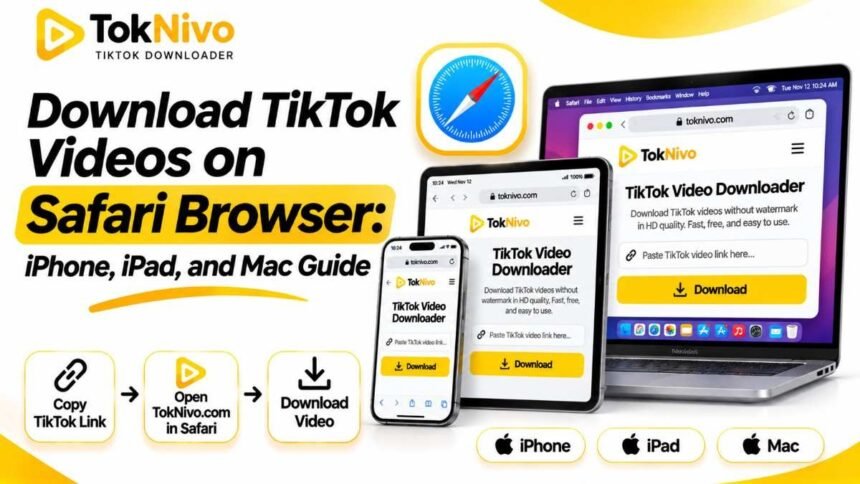
Safari is already on your iPhone, iPad, and Mac, so you do not need to install a browser extension just to save a TikTok video. The part that often confuses people is what happens after they tap Download. On an iPhone, Safari commonly puts the file in the Files app, while many people expect it to appear immediately in Photos. On a Mac, the file usually goes to the Downloads folder, unless you changed Safari’s download location.
This guide walks through the complete process: copying a TikTok link, using TokNivo in Safari, finding the downloaded file, and saving it to Photos when needed. It also covers the situations where a link will not work or a video opens in a browser tab instead of downloading.
Quick answer: How do I download a TikTok video in Safari?
Open the TikTok video, choose Share → Copy link, open TokNivo in Safari, select Video, paste the link, and tap Download. Choose an available video option if the site presents one. On iPhone or iPad, check Files → Browse → Downloads afterward. On Mac, check Safari’s download list or the Downloads folder. If you want the clip in your iPhone’s Photos library, open the downloaded video in Files and use Share → Save Video, when that action is available.
The exact wording of Safari’s buttons can vary by device and software version. The basic workflow remains the same: get the public post link, download the file, and locate it in your chosen download folder.
Before you start: check the video and the link
Make sure the TikTok post is accessible and that you copied the post link, rather than a creator’s profile URL or a link to a sound page. In the TikTok app, tap Share on the video and then Copy link. If you are watching TikTok in Safari, use TikTok’s sharing control to copy the post link, or copy its address from Safari when the address points to the individual post.
You may see a short vm.tiktok.com link or a longer TikTok video URL. Both are intended to identify a post, but availability can change if the creator removes it, restricts access, or changes its visibility. If a pasted link fails, first open that link in Safari to see whether the post itself still loads. A downloader cannot reliably retrieve media that is no longer available to the public.
For your own videos, TikTok’s built-in Save video option may be the simplest route when it appears. For someone else’s work, respect the creator’s settings and get permission before republishing, editing, or using the clip commercially. Downloading a file does not grant rights to its footage, music, or other elements.
How to download TikTok videos on Safari for iPhone
1. Copy the TikTok video link
Open TikTok and locate the video. Tap the Share arrow and choose Copy link. If you do not see that option immediately, look through the sharing actions. Avoid copying a link to the creator’s profile: the video itself needs its own URL.
2. Open TokNivo in Safari
Switch to Safari and visit toknivo.com. On its main downloader, select the Video tab. Tap the link field and paste your TikTok URL. TokNivo also offers separate Audio and Images tabs, so checking the selected tab helps ensure you receive the format you wanted. You can use the site in Safari without installing a separate downloader app.
3. Start the download
Tap Download and wait for the available result. If more than one video option appears, choose the one that fits your needs. A higher listed resolution may be useful for editing, but it will generally take more space. The resolution of the source post limits the detail you can obtain; choosing a 4K or 8K label cannot create genuine detail that was never present in the original video.
Safari may ask you to confirm that you want to download the file. Accept the prompt for the file you intended to save. If the video starts playing on a new page instead, look for a download control or the Safari sharing menu on that page. Browser behavior can depend on how a particular media file is served.
4. Find the video in Files
Open the Files app, tap Browse, and open Downloads. Depending on your Safari settings, that folder may be under iCloud Drive or On My iPhone. You can also return to Safari and open its Downloads control to check whether the transfer has finished. Tap the file in Files to verify that it plays before deleting the original link or closing your research tabs.
5. Move the video to Photos if you need it there
A Safari download and a Photos library item are different things on iPhone. To add the downloaded clip to Photos, open it in Files, tap Share, and choose Save Video if that action is offered. Then open Photos to check for the clip. If Save Video is absent, first confirm that the file is a compatible playable video and that it has finished downloading. Keeping it in Files is perfectly fine if you only need offline playback or want to attach the original file elsewhere.
Tip: If you download several clips for your own project, rename them in Files with a short description and the creator’s name. A folder of generic filenames becomes difficult to search later, and recording attribution while you still have the source link saves time.
How to download TikTok videos in Safari on iPad
The iPad workflow is nearly identical: copy the post link, open TokNivo in Safari, choose Video, paste the URL, and use Download. Then go to Files → Browse → Downloads. The Downloads folder may be in iCloud Drive or on the iPad, depending on your settings.
An iPad’s larger screen makes it easier to keep TikTok and Safari in separate windows or switch between them. Still, copy the link directly from the intended post; typing a username or video caption into a download field will not identify the correct file. If you are gathering clips for a presentation or edit, verify each downloaded video before moving on to the next post.
Need the video in Photos for an iPad editing app? Open the saved video from Files, use Share → Save Video if available, and confirm it appears in Photos. Otherwise, many apps let you import directly from Files, which can spare you a duplicate copy.
How to download TikTok videos on Safari for Mac
- Open the TikTok post and copy its link from TikTok’s Share menu, or copy the individual post URL from the address bar.
- In Safari, open TokNivo, choose Video, paste the link, and click Download.
- Select an available video file or quality option if prompted. Wait until Safari finishes downloading.
- Click Safari’s Downloads button to see recent transfers, or open Finder → Downloads to locate the file.
- Open the clip to make sure you saved the correct post and the playback is complete.
If you previously changed Safari’s download destination, look there instead of Finder’s default Downloads folder. On Mac, Safari’s Settings → General → File download location controls where downloaded items go. Choosing a project folder can make repeated downloads easier to manage, especially when you are collecting your own clips for an edit.
If a click opens a playable video instead of saving it, try the visible download option on the page. Where Safari shows a direct link to the media file, Control-click → Download Linked File may also work. Some webpage items do not expose a downloadable file through that menu, so use the site’s download control when present.
Files versus Photos: where does Safari save TikTok videos?
This is the most common Safari question. On iPhone and iPad, a file downloaded from a website usually belongs in Files, even when the file itself is an MP4 video. Photos is a separate library. If you only search Photos, it can look as though the download failed even though the video is safe in Files.
Open Files → Browse → Downloads and look under both iCloud Drive and On My iPhone or On My iPad when you are unsure of the selected location. Safari’s Downloads control can also show recent activity. You can choose a preferred download destination in the device’s Safari settings. Saving to iCloud Drive is useful when you want the downloaded file available across Apple devices signed in to the same Apple Account; saving locally may be more convenient when you want to keep it on one device.
On a Mac, the equivalent location is generally the Downloads folder in Finder. Safari’s download list is helpful for checking progress and locating a recent file. In either case, check the actual file before assuming that a preview page or a thumbnail means the video was saved.
Choosing video quality without wasting space
TokNivo describes support for multiple quality choices and watermark-free MP4 downloads. The useful choice depends on the source file and what you plan to do with it. For quick offline viewing on a phone, an available HD option is often sufficient. If you intend to edit your own footage, choose the highest genuine available quality and keep the source wherever possible.
Be skeptical of any quality label that promises more detail than the source video contains. A 720p upload does not become a true 4K recording just because you select a 4K download button. Higher resolution files also consume more mobile data and storage. On a limited connection, try a smaller available option first and play it back before downloading another copy.
Watermark-free files deserve the same care as any other creator content. Removing a visible mark does not remove copyright, the need for attribution, or the creator’s control over authorized reuse. For publishing your own video elsewhere, the best source is usually the original file you created before uploading it to TikTok.
Safari troubleshooting: what if the TikTok download fails?
The pasted link is rejected.
Copy the link again from the individual video’s Share → Copy link control. Delete any unrelated words accidentally pasted before or after it. Open the link in Safari to confirm it still resolves. If the post is private, deleted, or unavailable in your region, a downloader may not be able to fetch it.
Nothing happens after tapping Download.d
Wait briefly, then check Safari’s download indicator and your Files or Downloads folder. Confirm that you have an internet connection and available device storage. If a content blocker appears to interrupt the page, you can temporarily test that page without the blocker and re-enable it afterward. Avoid granting notifications, installing a profile, or entering a TikTok password in response to an unexpected prompt.
The video plays, but I cannot find a file.
Playback is not proof that a file downloaded. Look for a separate download control on the result page. On iPhone or iPad, check Safari’s Downloads control and the Files app. On Mac, check Safari’s download list and your configured download folder. If no file exists, retry the site’s download action instead of repeatedly tapping the preview video.
The file is in Files, but not Photos.
That is normal for a Safari download. Open the finished video in Files and choose Share → Save Video if available. If the action is missing or the saved file will not play, try another available MP4 option. A damaged or incomplete download may need to be started again.
The download is slow or incomplete.
Check your connection, free storage, and Safari’s download progress. On a Mac, Safari can show paused downloads in its download list; resume one if that option appears. A smaller available file may be quicker to transfer on mobile data. If a particular post repeatedly fails while others work, the issue may be with that post’s availability rather than Safari itself.
Can you download TikTok videos in Safari without the TikTok app?
Yes, when you already have a link to an accessible post, you can open the link and use a browser-based downloader in Safari. You do not need to install a dedicated TokNivo app. If TikTok’s website presents a sign-in prompt or hides a post, that does not guarantee a third-party site can access it. The reliable starting point is a publicly available post URL.
If your goal is simply to watch a video later, TikTok’s own saving options may be enough when the creator allows them. Use a Safari download when you specifically need a file in Files or on your Mac. If you need audio or slideshow images instead of an MP4 video, choose the relevant TokNivo tab or dedicated tool and check the resulting file type before sharing it.
Frequently asked questions
Does TokNivo work in Safari on iPhone and Mac?
TokNivo says its browser-based downloader supports iOS Safari and macOS. Its home page provides a TikTok link input, a Video tab, and a Download control. Actual results depend on whether the post is accessible and what media options are available for it.
Do I need a Safari extension to save TikTok videos?
No extension is needed for the workflow in this guide. Copy the post URL, visit TokNivo in Safari, and download the offered file. Avoid installing unfamiliar extensions or profiles merely because a page asks you to do so.
Why is my downloaded video not in my iPhone camera roll?
Safari typically saves downloads to Files. Open Files → Browse → Downloads, find the video, then use Share → Save Video if you want a copy in Photos. If your Safari download location is iCloud Drive, look there first.
Can I save a TikTok video without a watermark in Safari?
TokNivo offers watermark-free video downloads for supported posts. Check the actual downloaded file to confirm the result. Keep the creator’s rights and permission in mind before reposting the clip.
Will choosing 4K or 8K improve an older TikTok video?
No. A download setting cannot restore visual detail missing from the uploaded source. Choose among the formats genuinely available for that post, and use the original recording when you need the best quality for your own work.
Can I download a private or deleted TikTok video?
Do not expect a public link downloader to access a private, deleted, or otherwise unavailable post. If the creator owns the content, ask them for a copy or use an authorized export or save option.
Final checklist
For a smooth Safari download, copy the URL of the individual TikTok post, choose TokNivo’s Video tab, start the download, and check the finished file in Files on iPhone or iPad or Downloads on Mac. Move it into Photos only if your workflow requires it. If the link fails, verify the post’s availability before changing Safari settings. And if the video belongs to someone else, seek permission for any reuse beyond personal viewing.
Ready to try it? Open TokNivo’s TikTok video downloader in Safari and paste a public post link.