


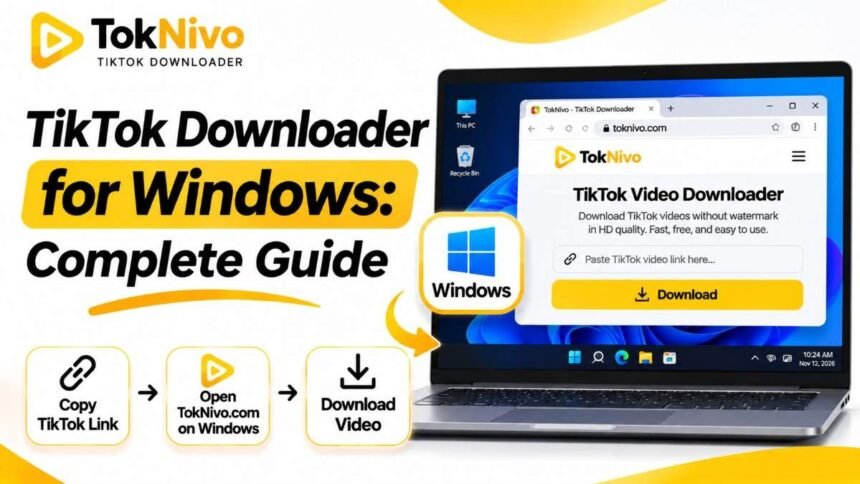
If you have ever sent a TikTok link to yourself just to watch it later on your laptop, there is an easier way to keep a local copy. A Windows computer gives you room to organize clips, play them on a larger screen, and work with your own footage in an editor. The part that trips people up is usually the same: finding the right post link, choosing a usable format, and locating the file after the browser finishes downloading it.
This guide walks through the process with TokNivo, a browser-based TikTok downloader that works on Windows. You will also learn how to save audio and photo posts, what “HD” really means, and what to check when a link or download does not work. You do not need a dedicated Windows program for the basic workflow.
Quick answer: How do I download a TikTok video on Windows?
- Open the TikTok video and copy its post link using Share → Copy link, or copy the URL from your browser’s address bar.
- On your Windows PC, open TokNivo in a browser and select Video.
- Paste the TikTok link into the input box and click Download.
- Select an available MP4 download option and wait for your browser to save the file.
- Open your browser’s downloads list or the Windows Downloads folder to find it.
That is the short version. The details below help when you are using Windows 10 or 11 for the first time, want a specific video quality, or need to keep a tidy folder of downloaded clips.
What you need before you start
You need an internet connection, a current desktop browser, and a link to the TikTok post. Microsoft Edge is already available on most Windows PCs; you can also use another supported browser. TokNivo runs on the web, so the normal process does not call for an installer, a browser extension, or a TokNivo account. You also do not need to enter your TikTok password into TokNivo.
Make sure you have the post link, rather than a profile page, search-results page, or screenshot. A link normally opens the individual video when pasted into your browser. If a friend sends you a short TikTok share link, it should lead to a post; if it does not, ask for the direct post URL. Public accessibility matters too: a post that has been removed, made private, or restricted may not be available for a web downloader to retrieve.
Before saving somebody else’s video, consider why you need the copy. Personal reference and offline viewing are different from uploading a creator’s work elsewhere. Ask for permission before republishing, editing for distribution, or using a video commercially. A clean copy without a visible watermark does not transfer ownership or remove the need to credit the creator where appropriate.
Step-by-step: Download TikTok videos to a Windows PC
Step 1: Open the correct TikTok post
On your Windows laptop or desktop, open the video on TikTok. You can start from a link in an email, a message, or TikTok’s website. Check that the page displays the video you actually want. If you copied a link from a list of results, open the individual post first; a general TikTok page will not identify a specific file to save.
If the video is open on your phone instead, tap Share, then Copy link. Move that link to your PC using a message to yourself, a notes app you use on both devices, or another method you trust. Open the transferred link on the computer to confirm it points to the right post.
Step 2: Copy the video link
On desktop, use TikTok’s share menu and choose Copy link when it is offered. You can also click in the address bar of the individual video page, press Ctrl + C, and use that URL. The goal is the link to the post, not the link to its creator’s profile.
A quick check saves time: paste the URL into a new tab. If it opens the exact video, it is the right kind of link to try in the downloader. If it redirects to a login screen or says the content is unavailable, resolve that access issue before trying again.
Step 3: Paste it into TokNivo
Visit toknivo.com, select the Video tab, click inside the link box, and press Ctrl + V. TokNivo also displays a Paste button, which may be useful when your browser permits clipboard access. Click Download and allow the page to load the available result.
Avoid copying stray words before or after the link. If you copied a whole message containing a caption and URL, remove the extra text and paste only the post address. If one link fails, open the post in your browser and copy its address again.
Step 4: Choose the version you need
Choose from the options the page actually provides for that post. An MP4 video is the practical choice for watching on your PC or bringing your own content into a video editor. If there is more than one quality option, consider how you will use the file: a higher-resolution option can look better on a large display but usually takes more space; a smaller file is easier to send or store.
TokNivo lists multiple quality levels on its site, including HD and, where available, higher-resolution choices. The presence of a 4K or 8K label on a downloader does not mean every TikTok video was uploaded at that resolution. Downloading a low-resolution source through a high-resolution option cannot create detail that was never in the original. Pick the best available source version for the specific post rather than assuming the biggest number always gives a better picture.
Step 5: Find and check the file
When the browser finishes, open its downloads list and select Show in folder or the equivalent control. You can also open File Explorer and look in Downloads. Windows often makes the Downloads folder accessible from File Explorer’s Home or Quick access. If you previously changed your browser’s save location, use the downloads list to see where this particular file went.
Double-click the video to confirm that it plays, has the expected sound, and includes the complete clip. Give the file a descriptive name, such as recipe-reference-sept-2026.mp4, while it is fresh in your memory. A useful filename is far easier to search later than a long string of numbers.
Downloading on Windows 11 versus Windows 10
The TikTok-to-TokNivo steps are effectively the same in Windows 11 and Windows 10: copy a post link, paste it into the website, choose a download option, and save the result through your browser. The main differences you may notice are the appearance of File Explorer and the location of browser controls.
If you do not see the file on either version of Windows, start with the browser’s downloads icon or menu. This is more reliable than guessing the destination folder, especially if you once selected Ask where to save each file. In Microsoft Edge, you can review or change the destination under Settings → Downloads. There is also an option there to ask you for a save location each time.
For repeated downloads, decide on a folder before you start. A simple structure might be Videos → TikTok → Your videos, Reference, and Permissions obtained. Keep the original post URL in a text note next to any file that you may need to attribute or revisit. If you are handling content for work, a record of the source and your permission is more valuable than an anonymous MP4.
How to download a TikTok video without a watermark on Windows
If an available TokNivo result offers a video without a watermark, select that option and inspect the saved MP4. A watermark-free copy can be useful when you are archiving your own posts or preparing your own footage for another format. Check the preview or downloaded file before planning your edit; the options available can vary by post and source.
Do not treat the absence of an on-screen logo as a license to republish another person’s video. Music, footage, illustrations, and a creator’s original edit may have separate rights. If you plan to use a clip in a client project, advertisement, compilation, or repost, get the necessary permission first. When you can use TikTok’s built-in Save video option and the creator has enabled it, that is another straightforward route for permitted downloads.
How to save TikTok audio on Windows
Sometimes you want the spoken explanation from your own clip or a short sound reference instead of the entire video. On TokNivo’s home page, choose the Audio tab, paste the post link, and review the available audio download options. Its site lists MP3 as well as other audio formats. MP3 is generally the simplest choice for playback and sharing across ordinary Windows apps.
Play the downloaded audio once before deleting the original video or closing the project. Audio extracted from a post reflects the sound available in that source; converting a file to a different format does not restore missing fidelity. If the sound includes commercial music or another creator’s recording, check what use is allowed before including it in something you publish.
How to save TikTok photos and slideshows on a PC
A TikTok photo post is not the same as a video. If the post contains a carousel, use TokNivo’s Images tab or its TikTok photo downloader instead of forcing the video workflow. Paste the link, review the photos displayed, and download the images you need. Depending on the post and tool result, you may be offered individual images or an option to save a set.
After downloading, check the order and filenames in File Explorer. A slideshow may contain more than one image, so confirm that you have the complete set before you close the page. If Windows saves a ZIP archive, open it to inspect the contents and extract the files into a named project folder. Use the original post URL in your notes so you can find the creator and caption again.
Which video quality should you choose?
“HD” is useful shorthand, but it does not tell you everything about a TikTok file. The result depends on the original upload, the versions accessible for that post, and the quality option you select. Larger pixel dimensions can help when the source contains that detail; they cannot repair blurry focus, compression artifacts, or a poor recording.
For casual offline watching, an ordinary MP4 option is often sufficient. If you are reviewing text overlays, product details, or camera movement on a large monitor, choose the highest genuinely available version and compare it with the next option. For your own footage that you plan to edit, retain your original camera export whenever possible. A download of a posted video may have undergone platform processing, making it a weaker editing master than the original file.
Do not rely on the filename alone to judge quality. In Windows, right-click the downloaded video, open Properties, and look at Details to inspect the frame dimensions when that information is available. Then play the file at normal size. A label such as “4K” matters less than what the actual saved file contains and how it looks.
Troubleshooting common Windows download problems
The link is rejected or nothing appears
Make sure you copied a direct link to a TikTok post. Remove any additional text around it, reload TokNivo, and paste the link again. Try opening the URL in a separate tab: if TikTok itself cannot show you the post, the downloader may not be able to access it either. Private, deleted, region-limited, or otherwise inaccessible content can stop the process.
The Download button works, but I cannot find the file
Look at the browser’s downloads panel first. It can show an active download, a failed attempt, or the completed file’s location. Next, check Downloads in File Explorer and sort by Date modified. If you use Edge, open Settings → Downloads to see the selected folder. A browser setting that asks where to save each file can also explain why a clip landed on your Desktop or in another folder.
The browser opens the video instead of saving it
Some links open a media preview in a browser tab. Look for the browser’s download or save control in that tab. Where available, use the file’s context menu to save it, then confirm the completed download in your browser. Avoid adding unknown extensions or executable software simply to solve a file-saving issue.
The file has no sound or will not play
Try playing it in another trusted media player and confirm that Windows audio is not muted. Check the saved file size: an incomplete download may be unusually small. Return to the result page and choose another available MP4 option if one exists. For a sound-only need, try the Audio tab and listen to the result. If the original post itself is silent, a downloader cannot add audio that is not there.
A 4K or 8K option is missing
That can be normal. Higher-resolution choices depend on the media available for a particular post. Choose the best offered option and evaluate the downloaded file rather than looking for a setting that promises to upgrade every video. For footage you created, use your original recording when you need the best quality for editing.
Downloads keep failing
Check that your connection is stable and your PC has free space. Reload the page, retry the post link, and verify that your browser is up to date. If you have changed browser security or download settings, inspect the browser’s download notification for the specific reason a file was blocked. Do not bypass a security warning for an unfamiliar file; the expected output here is a media file, not a Windows installer.
A simple workflow for creators and teams
If you download your own TikTok posts regularly, consistency matters more than speed. Create a folder per campaign or month, save the post URL and date beside each file, and keep your original camera exports in a separate folder. A posted MP4 can serve as a convenient reference, while the original export remains your source for future edits.
For a team, agree on a naming rule before everyone starts saving clips. For example, project_creator_topic_date.mp4 makes it easier to identify a file without opening it. Note who obtained permission for any third-party material and what uses that permission covers. If you are collecting reference examples, keep them in a reference folder rather than mixing them with approved publishing assets. These small habits prevent confusion when a project grows.
Frequently asked questions
Is TokNivo a Windows app?
TokNivo is a website you can use in a Windows browser. For the basic video download, you do not need to install a separate Windows application.
Do I need to sign in to TikTok to use TokNivo?
TokNivo’s website does not require a TokNivo account for its downloader. You need a usable TikTok post link; accessibility of the original post can affect whether it works. Never enter your TikTok password into a third-party download form.
Where do TikTok downloads go on Windows?
Usually they go to the folder configured in your browser, often Downloads. Open your browser’s downloads panel for the most direct way to locate a specific file. In Edge, you can check or change the location under Settings → Downloads.
Can I download TikTok videos as MP4 on Windows 10 and 11?
Yes, when an MP4 option is available for the post. The steps are the same on both operating systems: copy the video link, paste it into TokNivo, choose the available video result, and save the file through your browser.
Can I download a private TikTok video?
Do not assume a private or inaccessible post can be retrieved through a link downloader. Ask the creator to share a copy directly if you have a legitimate reason to keep it. Respect their privacy and any restrictions they have set.
Can I save only the music or speech?
Use TokNivo’s Audio tab and select an available audio format, such as MP3. Check the resulting file by listening to it. Permission to download for reference does not automatically grant rights to publish the sound elsewhere.
Is every TikTok video available in 4K or 8K?
No. Available choices depend on the source and the versions exposed for that particular post. A higher-resolution label cannot recover detail absent from the original upload.
Can I use downloaded TikTok clips in my own videos?
If you made the clip and have the rights to its audio and visuals, you can generally work from your original files. For somebody else’s content, get permission for the intended use and consider rights in the soundtrack separately. Removing a watermark does not grant reuse rights.
Final thoughts
A TikTok downloader for Windows should make a routine job simple: copy the correct post URL, use the right TokNivo tab, choose an available format, and confirm where your browser saved the result. Once you know those steps, saving a video, audio file, or photo carousel on a Windows 10 or 11 PC takes only a few moments.
Start with the post you want to keep and try the TokNivo video downloader. Check the actual file before sharing or editing it, keep the source link with your records, and respect the creator’s choices about reuse.